

How to Build a 'Second Brain' for Claude Code Using Obsidian

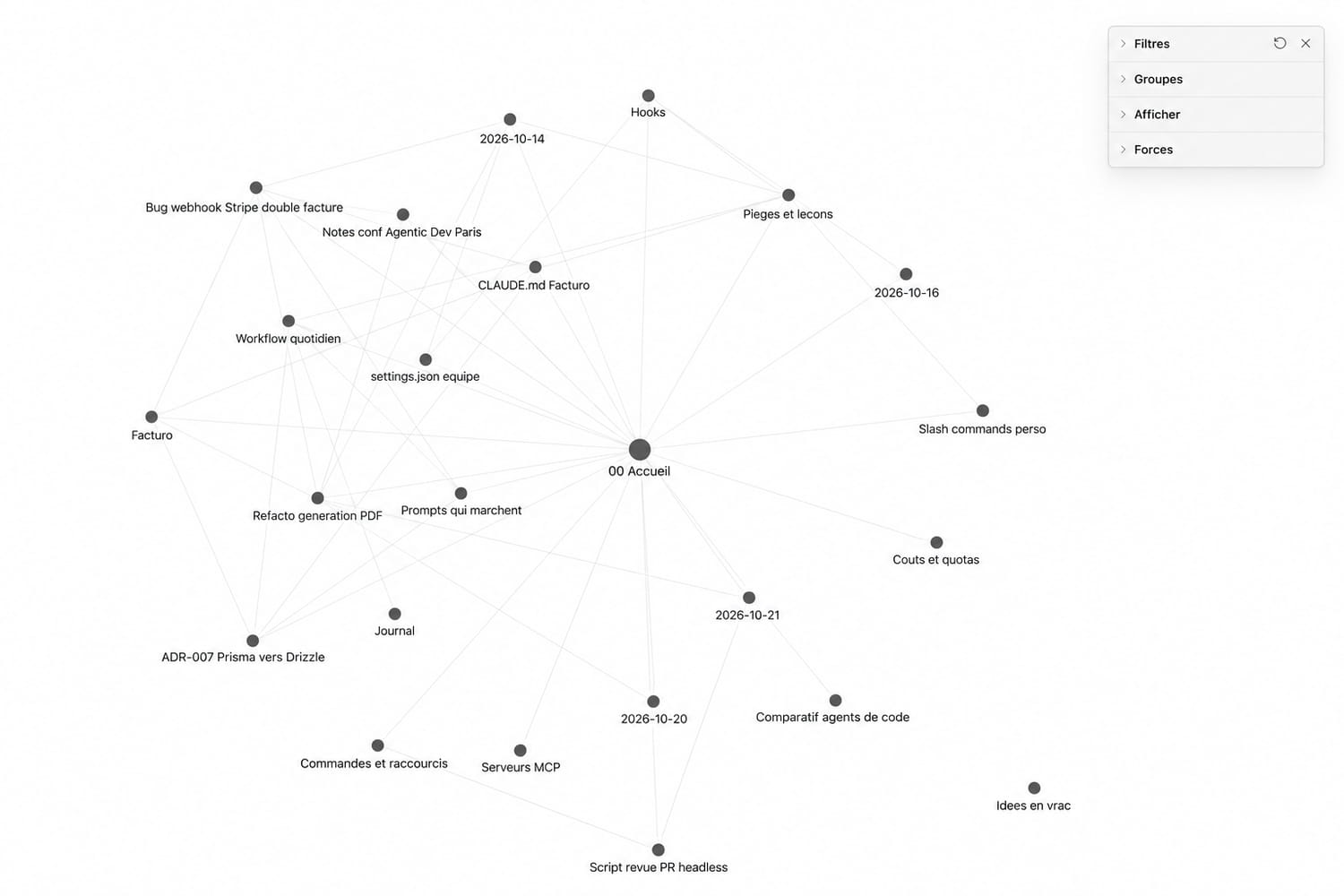
From students to code agents. Originally launched to meet the needs of students, researchers, and writers, Obsidian has gradually established itself as a true memory management tool for AI agents. Sometimes called the second brain of AI agents, the tool centralizes their memory notes. With real knowledge structuring, Obsidian goes beyond simple agent memory, making it truly useful and personalized as you interact with your AI.
How it works (and the benefits)
At first glance, Obsidian is just a markdown file manager. But the tool goes much further. It not only lets you create memory notes (in MD format), but—its real advantage—it lets you link them together. The goal is to think of memory as a network, not just as folders. The idea is based on the Zettelkasten method (literally "box of notes"), developed by German sociologist Niklas Luhmann. Ideally, each note contains a single idea, and each idea is linked to others through references or logical links, creating a network of thoughts. The system is continuously fed to help new ideas emerge.
Obsidian is built on this principle. Each folder is a vault, a container that Obsidian can fill with notes. Each note is a .md file in the folder. The vault can contain subfolders. Each note can also contain a direct link to another note. Notes can be organized with tags in the form of hashtags. Each note's properties are metadata in Yaml format at the top of the file (date, status, source). Images and PDFs can be included in a vault as resources to supplement the notes.
For anyone looking to structure their code agent's knowledge, Obsidian is one of the best options. Markdown is the language most used by LLMs: they can easily read and write it. And since the vault is just a folder, the agent has no trouble interacting with it. It can read, write, and edit each file completely transparently. In fact, the agent doesn't even need Obsidian to read these text files: the links between notes are just text, which it can follow without help. The app is mainly for the human user, to visualize notes and, if needed, modify or add to them manually. It can also assist the agent: since February 2026, an official command-line interface lets the agent query Obsidian's index (search, backlinks, orphan notes) when the app is open. Putting memory on paper helps avoid repeating choices, mistakes, context, and all decisions. And the structure also makes it much more readable than agents' native memory (Claude Code or Codex, for example). The links between notes provide real knowledge to the model, letting it make its own connections in memory.
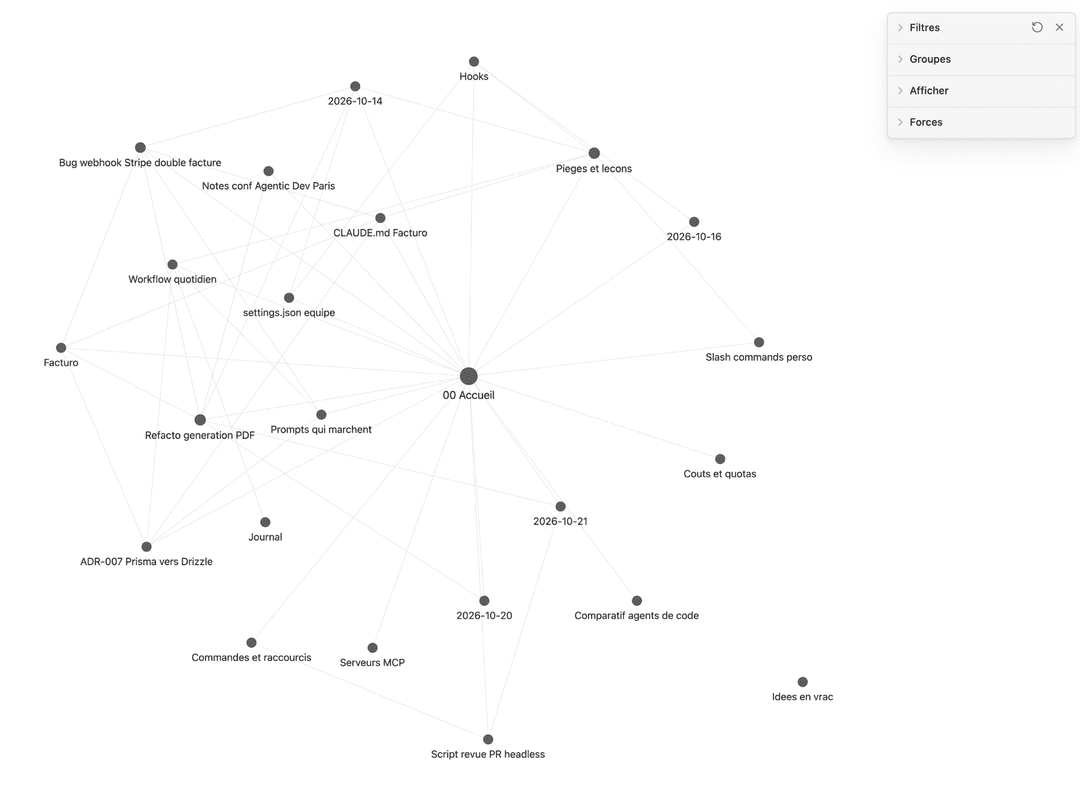
In practical terms, this structured memory delivers much more relevant answers for your use, fewer repeated requests, and more advanced self-correction by the model. With Obsidian, your agent is truly your own. And here's one of the most underrated advantages: you can share your local agent's memory with other local agents or on the web. Your entire "second brain" is directly accessible to all your AI tools.
Very simple setup
Setting up Obsidian couldn't be easier. Install the desktop app on your machine from the official site: https://obsidian.md/download
Then launch Obsidian on your computer and create a new vault (a notes folder). That's it (for you, the human user). You've just created your memory. By default, it's stored in a local folder on your machine. That's perfect if you're only using a local agent, but incomplete if you want to expose your memory to an agent on the web (Claude.ai or ChatGPT, for example). Fortunately, there are several ways to expose your Obsidian notes. The two main ones are:
Use Obsidian's native sync
This is the most integrated and least hacky way to sync your notes with your different agents. Obsidian offers cloud sync for your notes at $5 per month ($4 if you pay annually). It's a viable long-term solution, but you'll need third-party connectors to expose your memory on the web. Since notes are stored locally and on Obsidian's servers, you'll need to use a community MCP server (Obsidian doesn't offer any officially), exposed to the web via a tunnel.
Use a GitHub repository
This method is a bit more DIY, but it has the advantage of being free. The idea? You turn a GitHub repo into storage for your Obsidian notes. Every note you create or modify is committed to the repo. The advantage is twofold: GitHub is free, and the main web-based AI agents (Claude, ChatGPT) have native GitHub connectors. No extra configuration is needed. However, you'll need to ask your agent to commit its changes regularly to make sure your notes are always up to date.
We recommend using the GitHub method, which has real advantages. For a company, however, using Obsidian's native sync may be a more serious option.
Agent-organized memory
Once the memory is created (your vault), you need to explain to your code agent how to use it. These instructions should cover three points: where the memory is (the folder path), what to put in it (all your Claude Code memories? Only architecture decisions? Recurring problems?), and how to sync it (here, with GitHub).
The first part is simple: give your agent the link to your previously created vault (C:/users/youruser/ClaudeMemory, for example). For the actual organization of the memory, either you know exactly what you want to include, or you let your agent guide you. It's impossible to say precisely what to include in memory, since local code agent use cases are so varied. For example, we recommend giving your agent the following prompt:
I want to organize the memory of my current and future projects in Obsidian. My vault: [link to folder].

1. Take inventory of what you know about me: your memory notes and our past conversations. List what deserves to be stored in the vault (projects, contacts, sources, preferences...) and what should be left out.

2. Suggest 4-5 different architectures, each suited to a use case (e.g. by project, by content type, PARA, journal + index...): folder structure, naming conventions, frontmatter, [[ ]] links, and tags. For each: who it's for and its main limitation.

3. Stop and wait for my explicit approval before touching the vault. If you have questions, ask them all at once (max 8), with a default answer for each.

4. Once approved, set up the chosen architecture following Obsidian standards (Markdown, YAML frontmatter, internal links, index notes). Don't delete or overwrite any existing file without my consent. Finally, add a permanent instruction in your instruction file (CLAUDE.md for Claude Code, AGENTS.md for Codex) pointing to the vault: check it at the start of each session and update it whenever a decision, error, or preference should be recorded.

5. Finish with a recap of what was created and check that the links work. I'll then tell you how to set up syncing.
Once you've entered the prompt and validated your choices, the agent implements them in the Obsidian folder. Important detail: it also writes the vault address in its permanent instruction file (CLAUDE.md for Claude Code, AGENTS.md for Codex), which it rereads at each new session. Now you need to configure the last link in the chain: syncing with GitHub. We'll assume your local code agent is already connected to GitHub. If not, connect it. The easiest way: install the GitHub CLI (brew install gh on Mac) then run gh auth login in your terminal. Both Claude Code and Codex use this to push to GitHub.
To set up recurring sync, just ask your agent to create the unique repo for your Obsidian notes and schedule memory syncs. Give your AI agent the following prompt:
Now, create a GitHub repo from this Obsidian vault, synced continuously.

1. Inventory the vault: size, files to exclude (cache, workspace, .obsidian config unique to each device), devices I use it on.

2. Suggest a sync routine with the best freshness/performance ratio: commit, push, and pull frequency, triggers (time, inactivity, open/close), conflict management. If several options are equally good, compare them in 3 lines max.

3. Stop and wait for my approval before creating anything.

4. Once approved: create the repo as private, the appropriate .gitignore, the first commit, then set up the routine and write it in your permanent instruction file (CLAUDE.md or AGENTS.md). No force push, deletion, or public repo without my consent.

5. Finish with a test (edit → commit → push → pull on another device) and a recap.
Your code agent is now connected to your knowledge base. It knows when to update it, when to push changes, and how to read it. And if you want to connect this memory to your web agent (Claude or ChatGPT), just activate your agent's GitHub connector online and give it a few instructions in the system prompt. To go further, Claude Code can also automatically load the right notes at each new session, thanks to a startup hook (SessionStart). Open a session in a project, and that project's note is automatically injected into its context.
On ChatGPT: https://chatgpt.com/settings/personalization?instructions=chatgpt
On Claude: https://claude.ai/new#settings/account
Give your agent the following instructions (replace user/repo-name with your repo name):
My long-term memory is an Obsidian vault synced on GitHub, in the {{user/repo-name}} repo. It contains my projects, contacts, sources, decisions, and preferences, in Markdown with YAML frontmatter and [[ ]] links.

- Whenever a request involves my projects, work, or preferences, first consult the vault via the GitHub connector: start with the index note, then follow [[ ]] links to relevant notes.

- The vault's content takes precedence over your memories or assumptions. If there's a contradiction or clearly outdated info, flag it.

- If useful info isn't there, say so instead of making it up.

- At the end of any important exchange, suggest in a few lines what should be added or updated in the vault (note + content), in Obsidian format, so I can add it or have my local agent commit it.
With this setup, when you develop locally with Claude Code, the memory is automatically updated and you can then discuss your project with ChatGPT or Claude online, for example. It's ideal for transferring knowledge between different AI services. And if you switch tools tomorrow, your memory comes with you: it's just markdown files.
This article was automatically translated from French. Read the original version: https://www.journaldunet.com/intelligence-artificielle/1557163-tutoriel-comment-creer-un-second-cerveau-pour-claude-code-avec-obsidian/